
Legionaries of Christ
Mass Request Program
How to Request
a Mass Online
It only takes a few minutes.
This guide walks you through every step, simply and clearly.
Keep this guide handy while you order
Once you begin, the steps will take you to the order page and away from this guide. The easiest way to follow along is to print this guide or download the printable PDF and keep it beside you. Then you can move through the steps at your own pace.
Download Printable Guide (PDF)This guide follows an Individual Mass, but the process is the same for all of them, including a Triduum, Gregorian, or Novena Mass.
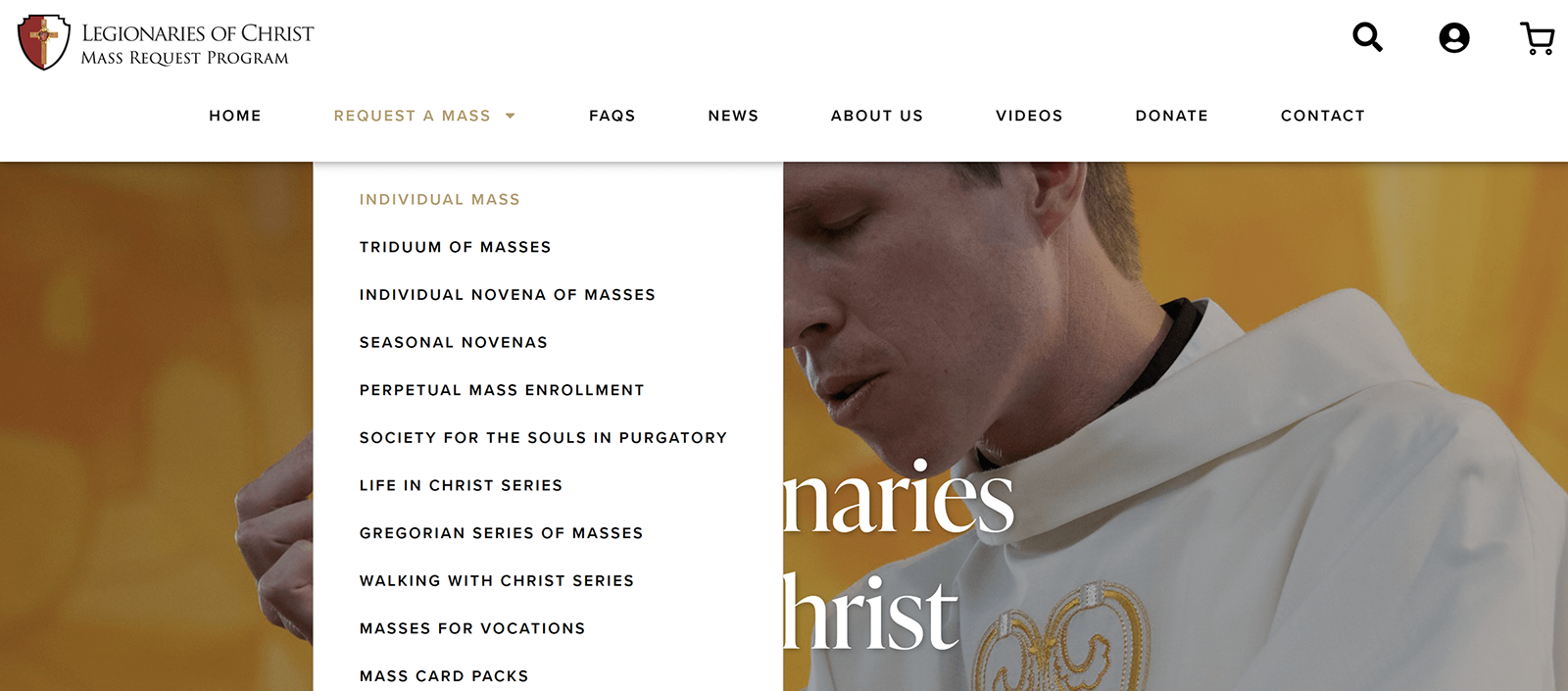
Look near the top of the page for the main menu. Click or tap “Request A Mass,” then choose “Individual Mass” from the list that appears.
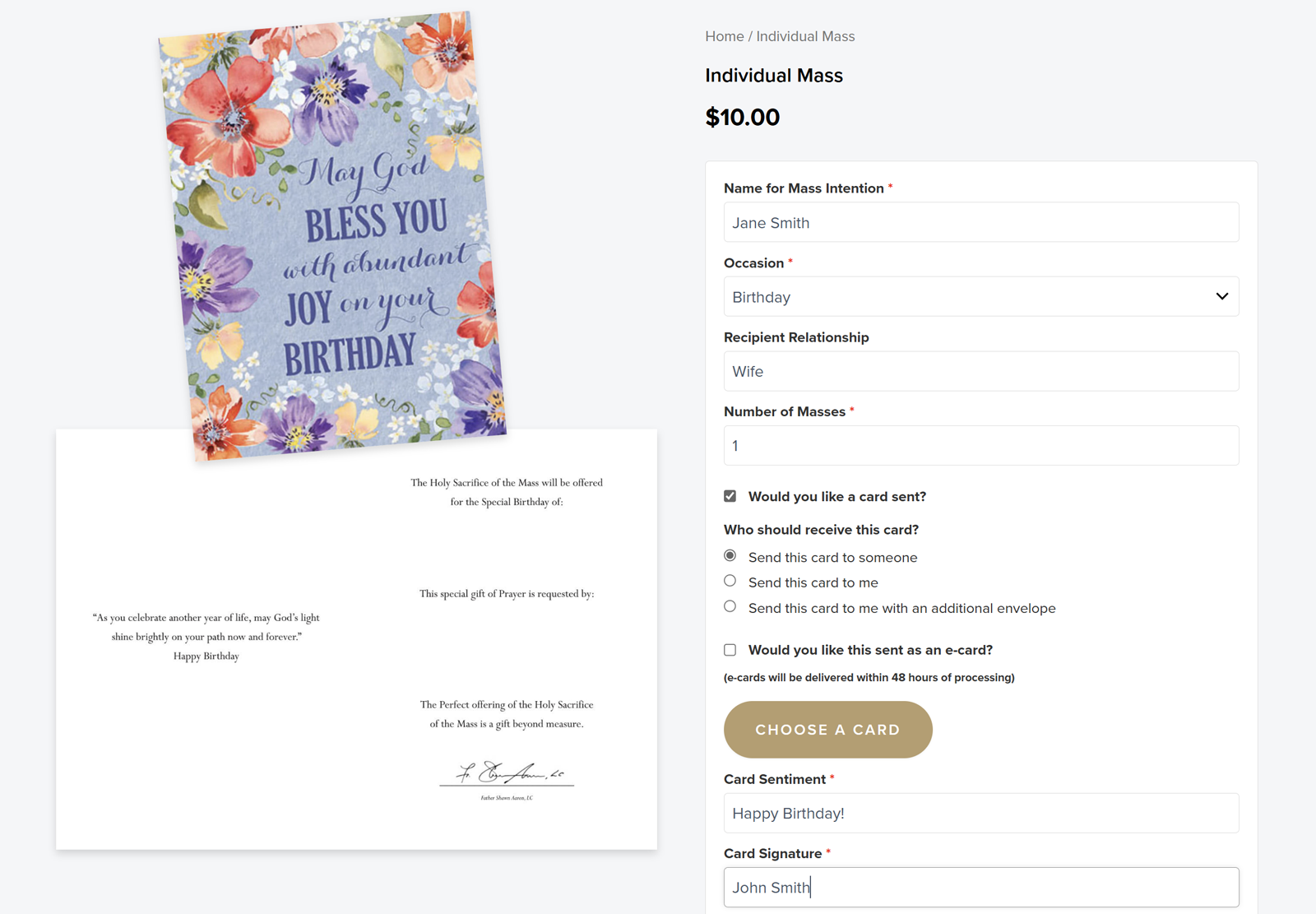
You will see a lovely selection of Mass cards organized by occasion. Simply click or tap the one that fits, such as Birthday, Repose of the Soul, Healing, Special Intentions, and more. Would you like to see more designs? Click or tap “Choose a Card” to browse all of the options.

Next you will fill in a short form for the Mass details. Don’t worry, it is very straightforward. You will fill in the name of the person the Mass is for, a short message for the card, your signature, and the name and mailing address of who should receive the card.
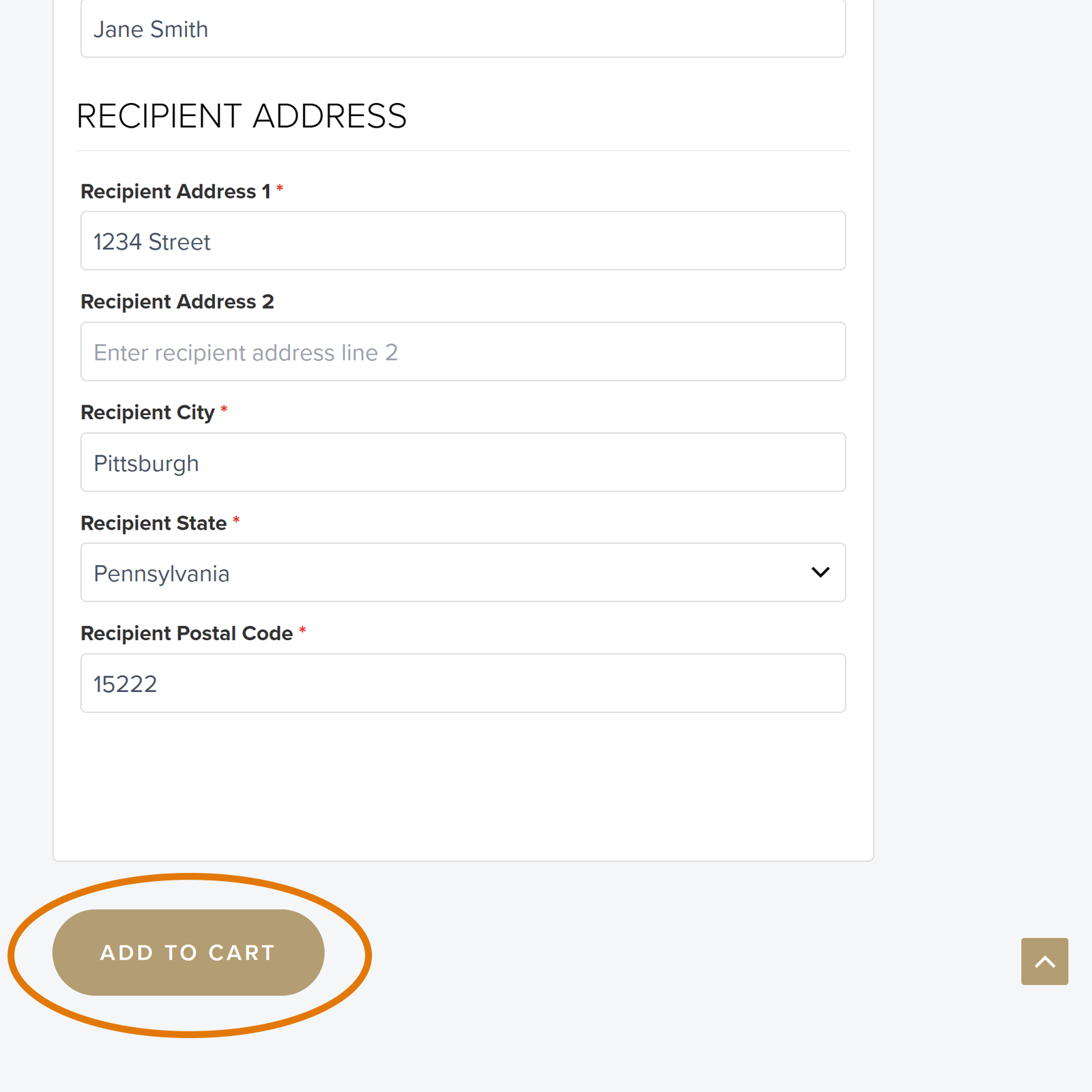
When everything looks good, click or tap the gold “Add to Cart” button. A green message will pop up at the top of the screen to let you know it worked.
Would you like to request another Mass for someone else? Just go back and repeat the previous steps. You can submit multiple intentions in a single order.
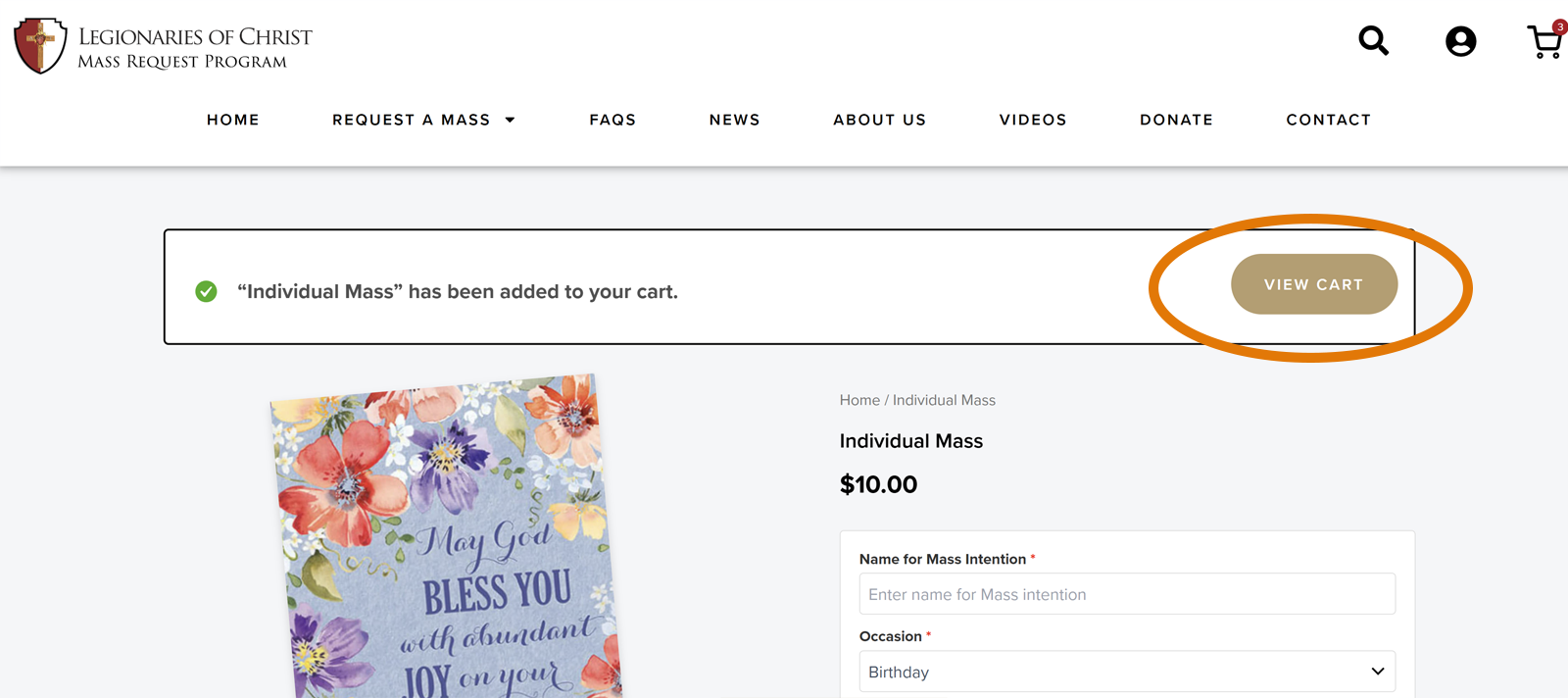
There are two easy ways to open your cart. Right after you add a Mass, click or tap the gold “View Cart” button in the green message at the top of the screen. Or, at any time, click or tap the shopping cart icon in the top right corner of the page. Either one opens your cart, where you can review your order. Make sure the name, occasion, and total look right, then click or tap the gold “Proceed to Checkout” button.
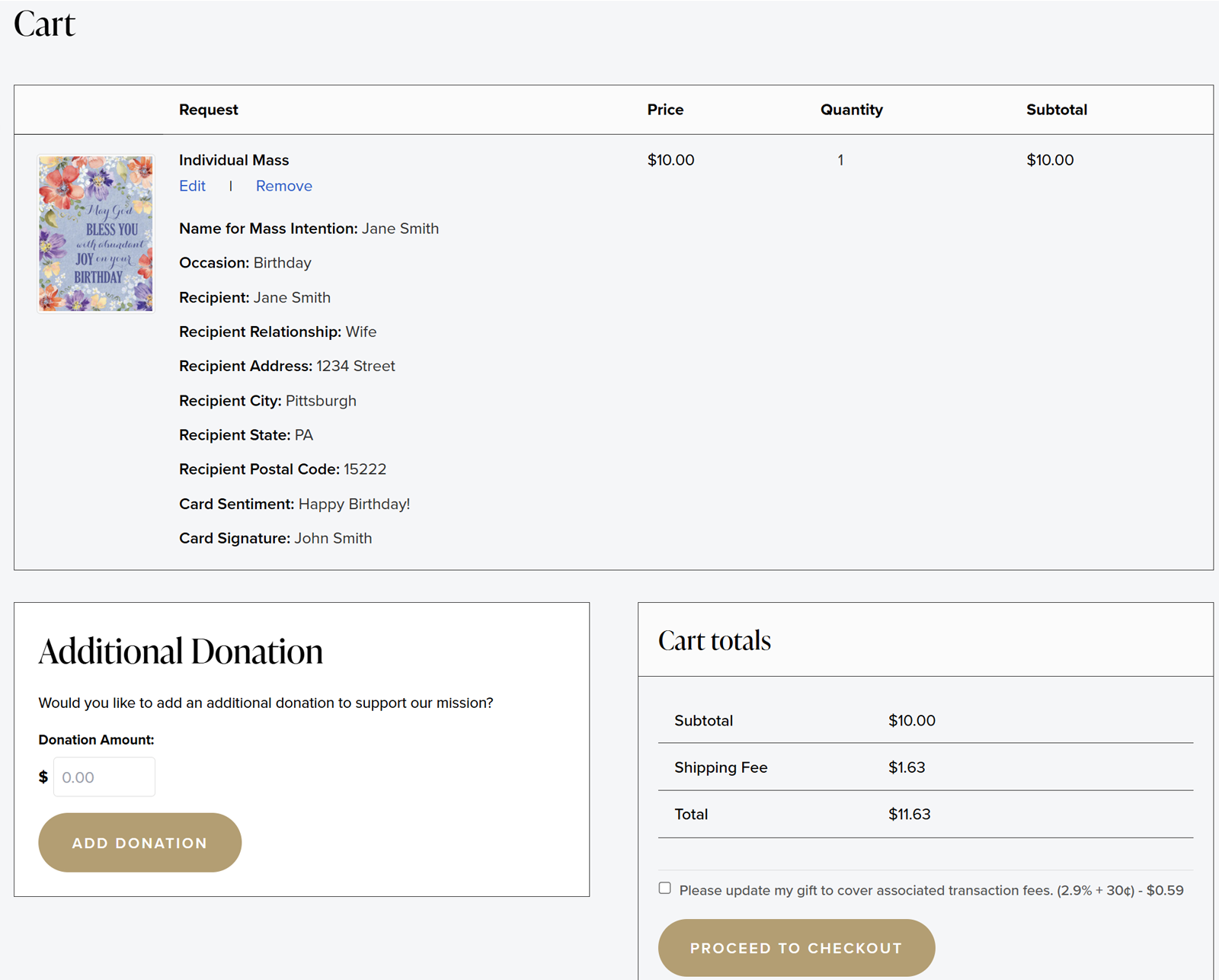
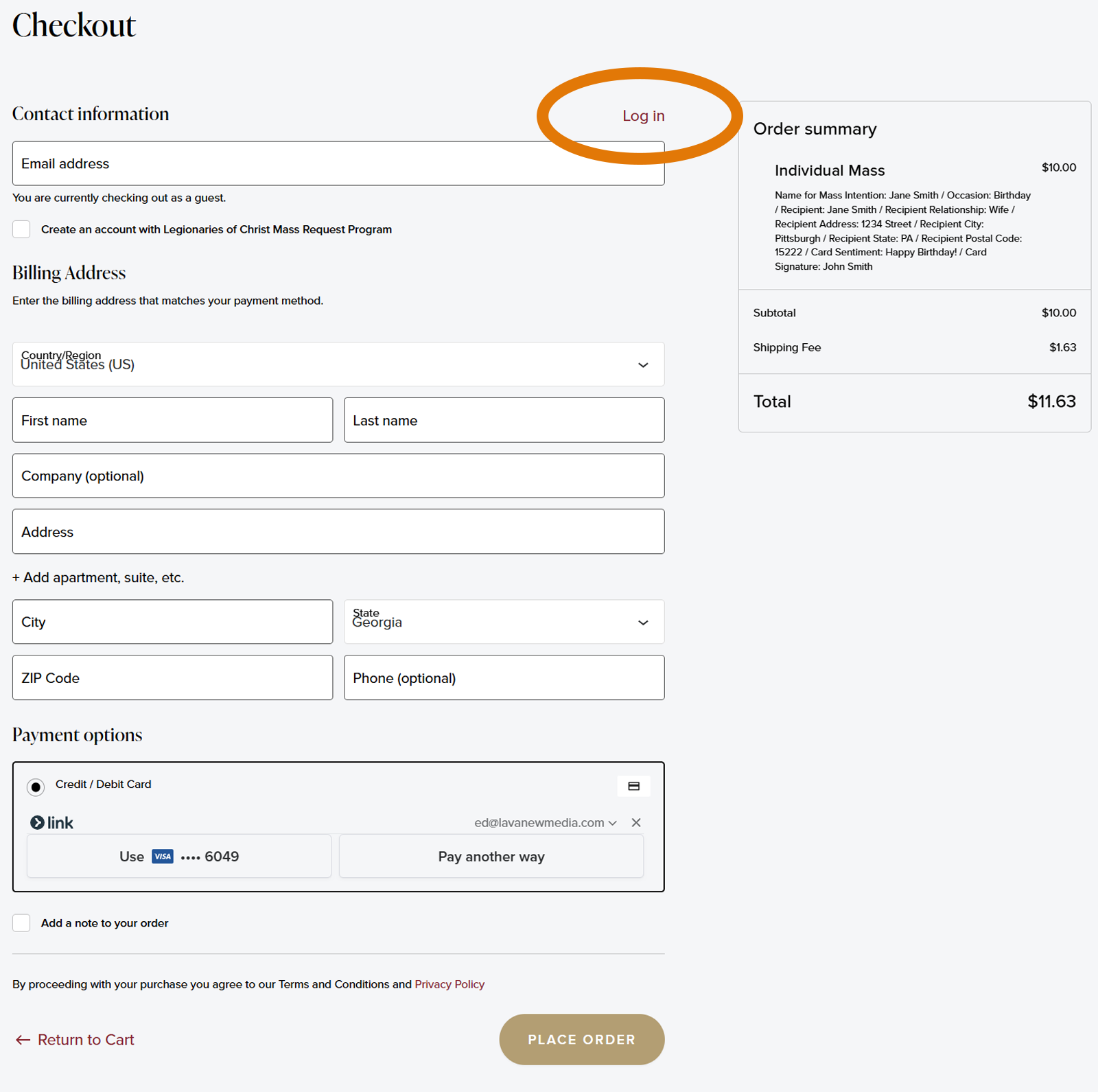
At checkout, you have two easy options:
First-time visitor? Just fill in your email, name, and address as a guest. No account needed.
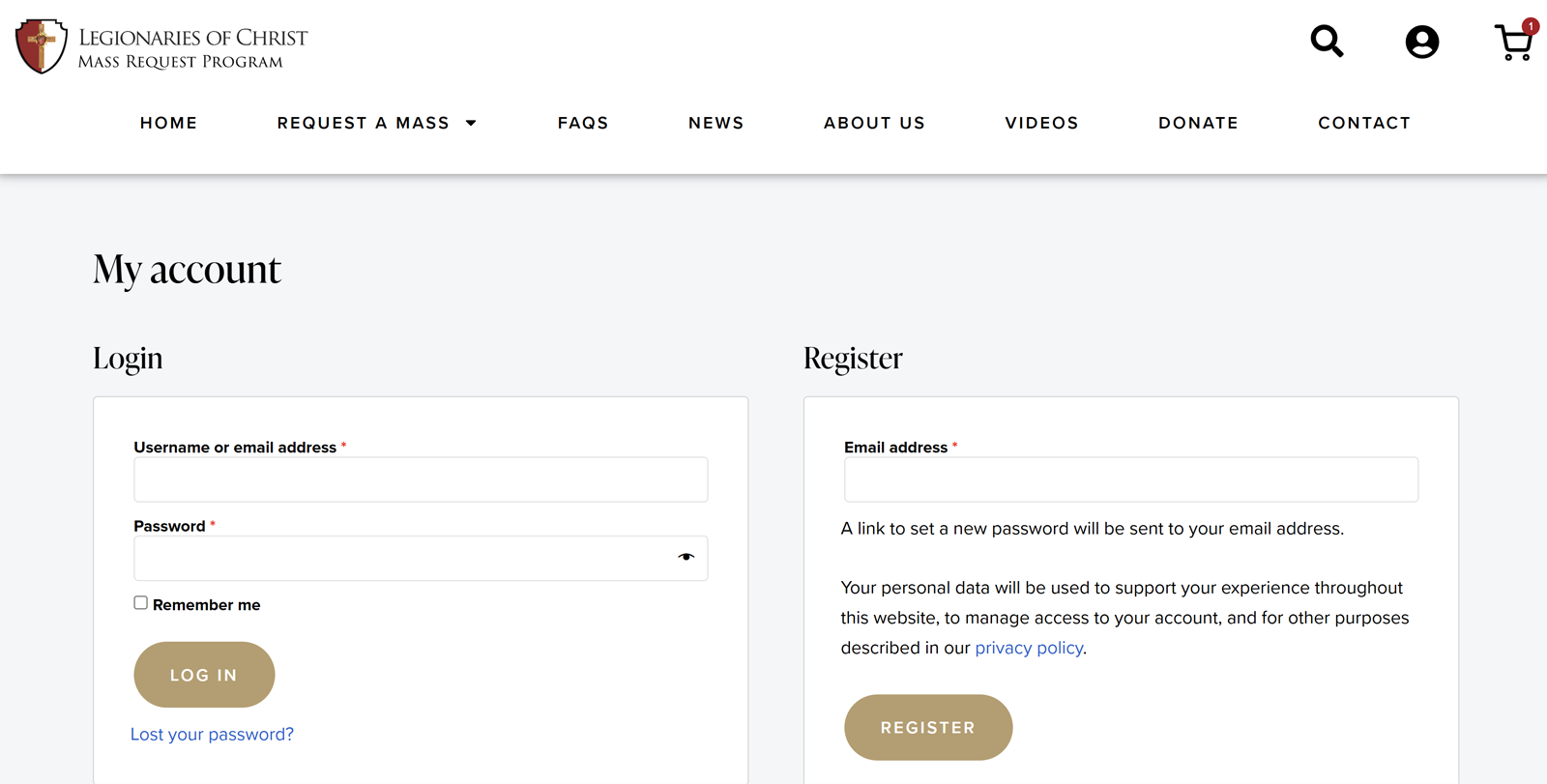
Have you ordered before? Click or tap the “Log in” link near the top of the form. Your saved details will fill in automatically.
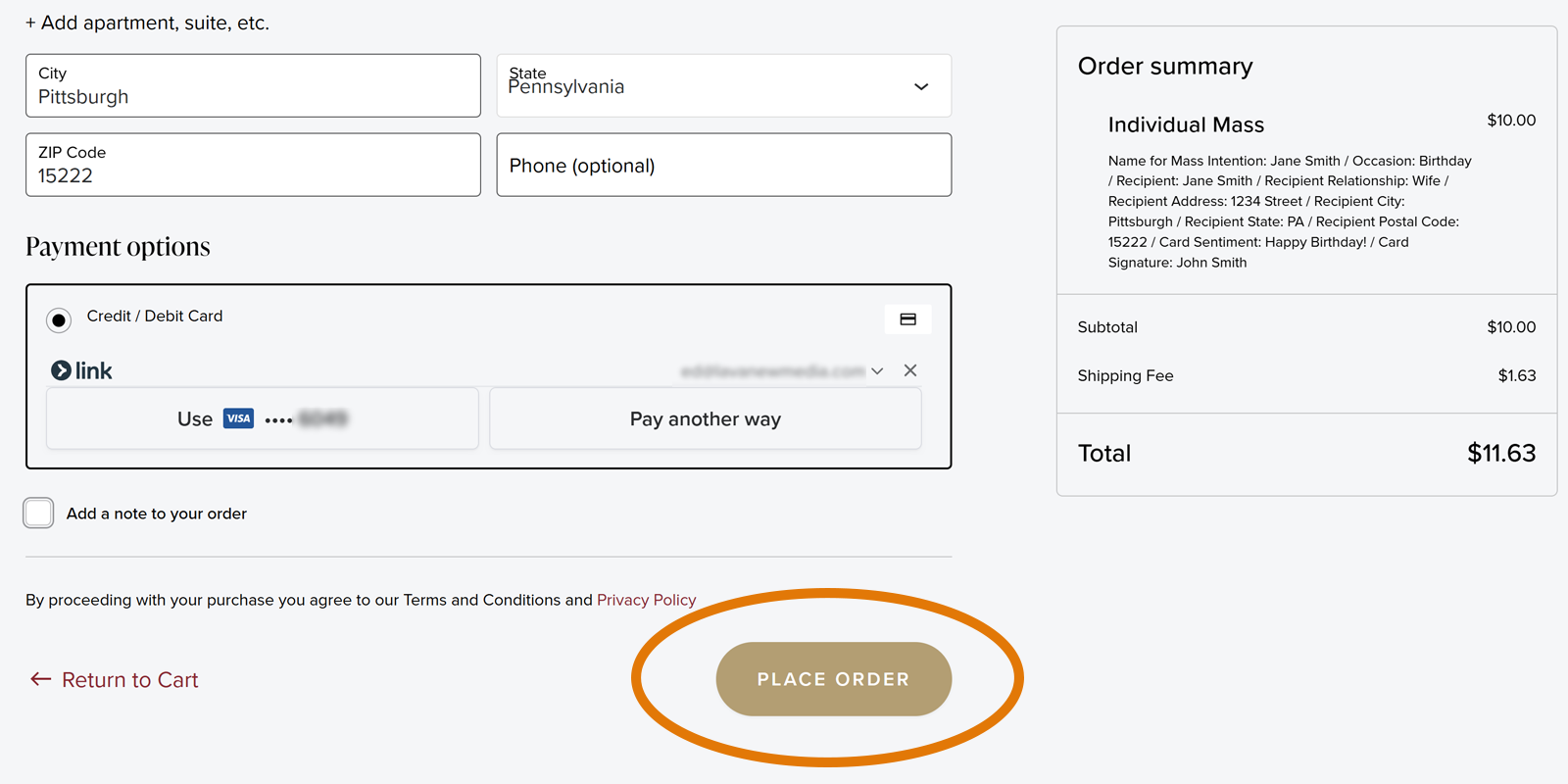
This is the last step. Enter your credit or debit card information in the Payment options box. The site is completely secure, so your card details are protected. When everything looks right, click or tap the gold “Place Order” button.
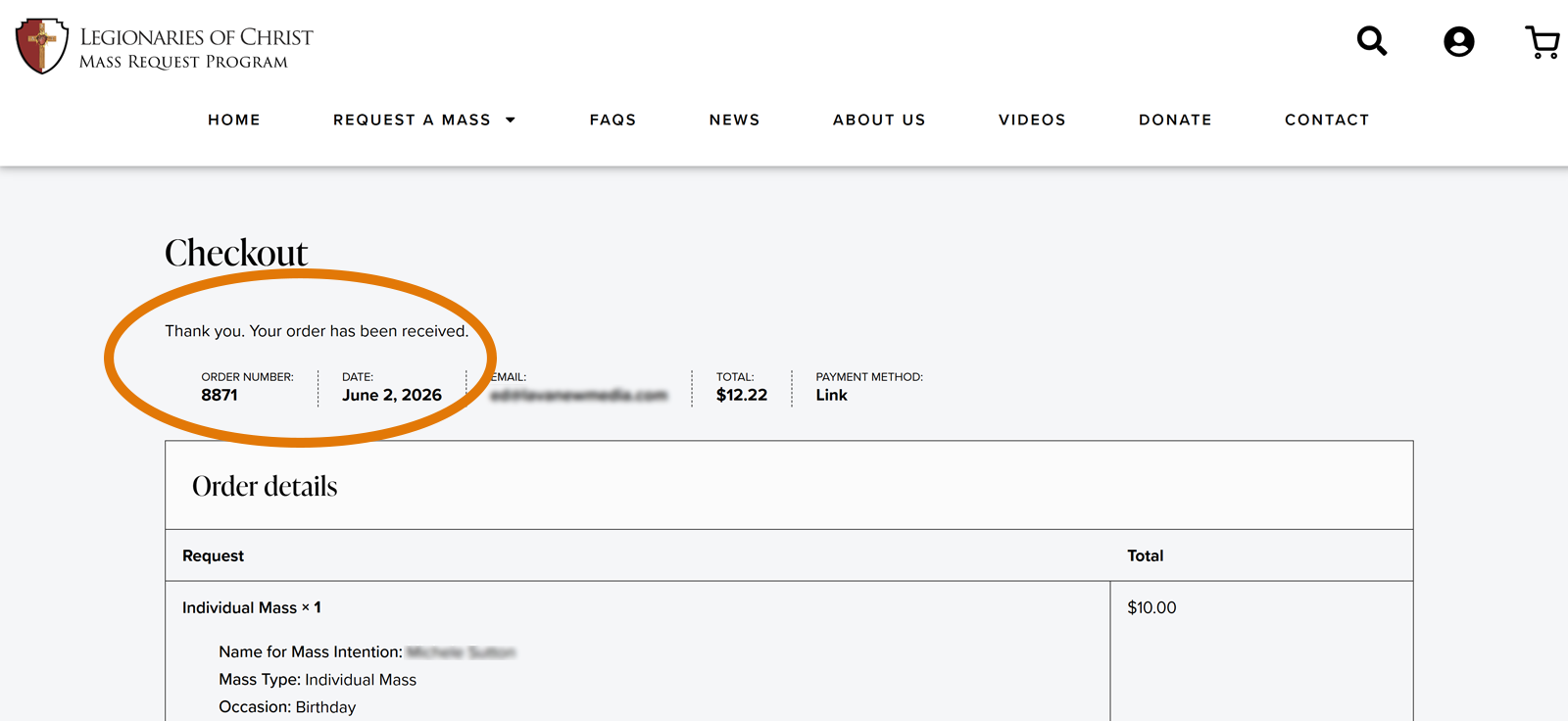
A confirmation page will appear right away with your order number. A confirmation email will be on its way to your inbox shortly.
A Legionary priest will offer Holy Mass for your intention, usually within just a few days. Thank you for this beautiful gift of the Holy Mass.
We Are Here to Help
If you have any questions or need a hand at any point, please do not hesitate to reach out. Barb DiSpirito and the Mass Request team are always happy to help.